38 Keyboard and MIDI Bindings
Capo’s Remote Control functionality allows you to use the app while it might not be possible to reach the Mac, iPhone, or iPad. For example, if you are sitting at an upright piano, you might find it helpful to use a foot pedal to start and stop the song rather than taking your hands off the keys and reaching for your Mac on the top of the piano.
Capo ships with a default collection of Command Bindings that are configured to work with an attached keyboard. But this set is fully customizable, and you can extend the list to trigger new commands, change the default set of assigned keys, or configure new ones that respond to MIDI messages (See examples in Chapter 13 or Chapter 14).
38.1 Command Bindings
A command binding is a connection between a trigger and one or more commands. The commands for a binding are triggered by either a keyboard message (e.g., pressing the K key) or a MIDI message (e.g., control change #30). When a binding is triggered, Capo dispatches its commands.
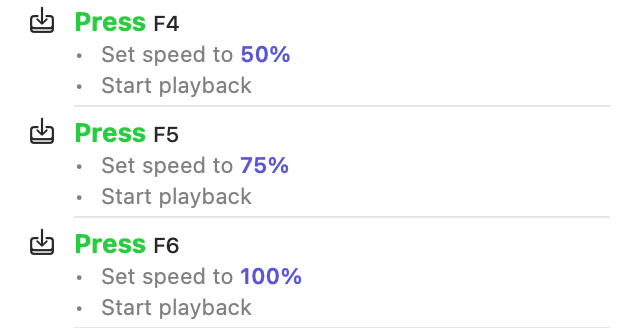
Bindings can dispatch more than one command. For example, pressing the F4 key could set the playback speed to 50%, and then start playback. Pressing the F5 key could do the same, but at 75% speed, and the F6 key at 100% (Figure 38.1). These bindings would give you one-touch access to start playback at a preset speed—especially handy when used alongside the transcription playhead.
38.2 Keyboard Messages
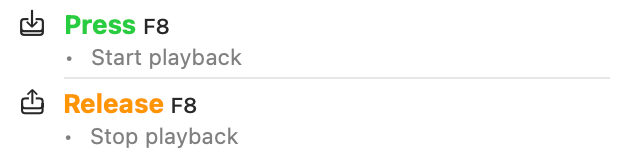
A keyboard message represents either a press (keyDown) or release (keyUp) of a keystroke on your keyboard. Keystrokes can be specified with modifier keys (e.g., ⌃, ⇧, ⌥), but they are not mandatory—“bare” keys like the numbers 0–9, or [ and ] are easier to operate quickly with one hand. By specifying separate press and release messages, you can create bindings that trigger operations only while the key is held down (e.g., Figure 38.2).
38.3 MIDI Messages
Capo supports the following MIDI messages: note on, note off, control change, program change, start sequence, and stop sequence. Fortunately, you don’t need to understand the technical details of these messages, because Capo can automatically learn the messages sent by your hardware, and you can choose triggers quickly. However, there are a couple of behavioural details that you should be aware of.
First, when Capo receives a MIDI message, it must decide which of your bindings to trigger; it does this by matching the incoming message to one of your bindings. Matches can be strict or loose depending on your needs. For example, you might want to trigger commands only when Control Change #5 is received on channel 10, and has a value of 127 (strict). Or, you might instead prefer that Control Change #5 on any channel, with any value (loose) will trigger commands. Your choice depends on the MIDI hardware you use, and the kinds of commands you want to trigger.
Second, unlike the messages from your Mac’s keyboard, MIDI messages can carry values. For example, playing a piano key softly will send a low value indicating the note’s velocity, and playing loudly will send a higher one. Similarly, turning a knob on your MIDI control surface will send lower values when turned counter-clockwise, and higher ones clockwise. In both of these examples, these changing values can be passed along to commands as a variable—for example, by binding a knob to the song’s playback speed, or volume.
38.4 Commands
As we discussed earlier, a binding will dispatch one or more commands when it is triggered by a message from your Mac’s keyboard or a MIDI device. Commands are sent serially (one at a time), in the order they are listed in the binding.
Most commands have one or more parameters that change what the command is doing. All parameters can be configured to have constant values. For example, you can set the playback speed to specific values like 25% or 42%. Or you can specify the target of certain commands, such as changing the volume of either the song or the metronome.
Some commands let you specify variable parameter values, where you let Capo “fill in the blanks” using incoming values from value-carrying MIDI messages. For example, you can set the playback speed using a variable, where values between 0 and 127 (the full range of MIDI values) are translated to a value between 25 and 150%. However, you might not want to set the speed across such a wide range. Fortunately, you can configure Capo to apply this translation over a smaller range, like 50–100%. You can also use variables to change parameters that accept boolean true or false values, like whether or not playback is active. You’ll find an example of this in the foot control how-to, where the transcription playhead is controlled by a toggle switch.