17 The Heads-Up Display (iOS)
The Heads-Up Display (HUD) is where you control the song’s playback, and where you’ll find controls for most of Capo’s functionality.
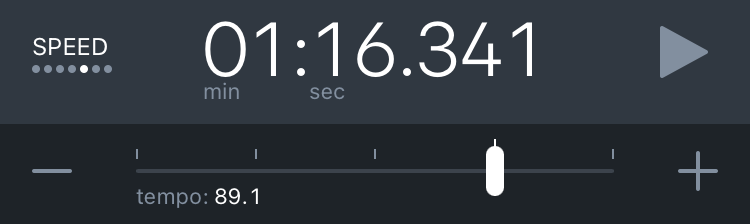
Its main component is the Control Strip—a set of controls displayed beneath the song’s playback position that are grouped by their function.
17.1 Position Display
The current playback position in the song is indicated above the Control Strip in the Position Display.
You can switch between displaying the current playback time, or the current bar/beat in the song, by tapping the position display. The Timeline at the top of the Practice Song View will also change to match the current setting.
You can also long-press the Position Display to seek to a specific position, or quickly jump to the start/end of a song.
17.2 The Control Strip (iOS)
Capo groups controls together in an area at the bottom of the Heads-Up Display called the Control Strip. There you’ll find different sets of controls depending on your selection in the Control Strip Selector that is located to the left of the position display.
17.2.1 Changing Control Strips
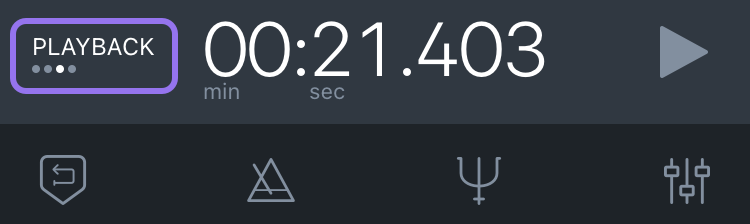
You can switch between different sets of controls displayed in the Control Strip by tapping or clicking on the Control Strip Selector. On iOS, press and hold the Control Strip Selector to quickly jump to any of the sets of controls with fewer taps.
There are different sets of Control Strips depending on your current song view.
Below is a list of all the control strips, with a brief description of, and links to, their various functions.
17.2.2 Regions

Here you can add and remove Looping Regions to your project, as well as navigate between regions.
17.2.3 Markers

These controls let you add and delete markers that allow you to navigate to meaningful points in a song. Where a region would surround an entire solo, a marker would instead help you find noteworthy phrases or notes within that solo.
17.2.4 Chords

This Control Strip allows you to add or remove Chords in your song, and also lets you move between the locations of chord changes in the song.
17.2.5 Playback

Here you can toggle the Transcription Playhead, set up the Metronome & Count-In features, control the Isolation effect, and adjust the Mixer.
For all these features, their buttons will be highlighted to indicate that the features are active, or making changes to playback. For example, when any of the Mixer volumes are set below 100%, its icon will be highlighted.
17.2.6 Speed

The Speed slider that allows you to adjust the song’s playback tempo. While adjusting the slider, the current playback speed percentage is shown above the slider knob, and underneath the slider track you’ll see the current (detected) tempo after applying your speed adjustment.
17.2.7 Key

This slider allows you to modify the key of your song so that you can play along or sing more comfortably with the recording. While adjusting the slider you’ll see an indication of the adjustment you’re making displayed in semitones. Below the slider, the (detected) key is listed, taking your adjustment into account.
17.2.8 Pitch

The pitch slider is valuable when working with older recordings that may be out of tune. Adjusting this slider displays a value in cents, which is equal to 1/100 semitones. The slider allows you to tune a full semitone (i.e. 100 cents) in either direction.
17.2.9 Sections

This is where you can add and remove Sections to your project in the structure song view.
17.2.10 Bars

This contains tools for editing Capo’s beat grid in the structure song view.