20 The Tabbing Song View (macOS)
This macOS-exclusive song view is like a supercharged version of the Practice song view, and most of what you do there can be done in the waveform area at the top of the Tabbing song view. For example, placing markers and regions, or modifying the chords that appear at the bottom of the window.
However, in this view, you can also tab out the song with the help of the spectrogram display that appears prominently in the middle of the project window. Even if you skip the tabbing features, you can get hints about what you’re hearing by reading the spectrogram.
To show the Tabbing song view:
- Click the song view selector at the leftmost corner of the toolbar
- Choose “Tabbing” from the pop-up menu
20.1 Working with Tablature
Tabbing out songs is as easy as “drawing” them atop the spectrogram, and listening to the note playback to verify what you’ve entered.
To enter a note:
- Click and drag anywhere in the spectrogram area to place a note entry
- Entries will now appear in the tablature area
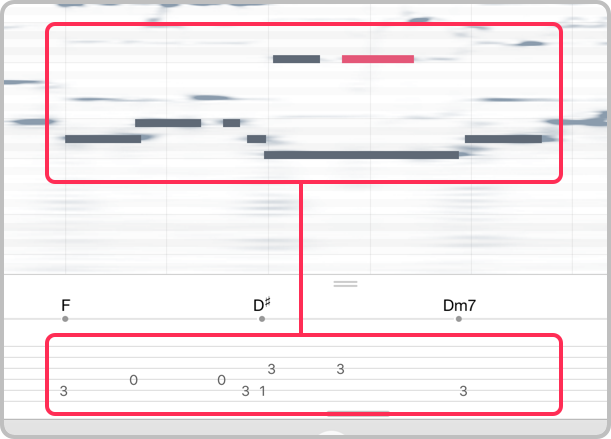
When you click in the spectrogram without dragging your mouse, you can listen to the sound of the note that would be placed. If it doesn’t sound like what you expected, then you don’t have to enter it!
When you draw notes that are higher or lower than the current instrument’s range (e.g., entering bass notes that aren’t on the guitar), they won’t appear in the tablature display.
The spectrogram can play tricks on you, so be sure to continue using your ear, and clicking the notes in the spectrogram, to verify the notes you hear. If you get it wrong, it’s easy enough to fix!
You might find that you’ll enter notes that aren’t actually being played, or it’s a note that’s played by a different instrument.
Select a note entry:
- Click any of the entered notes to select them
- The note entry will turn yellow to indicate it is selected
NOTE: Clicking on existing note entries will also play audio feedback, using the duration of the note as it was drawn.
To select multiple notes:
- Hold the shift key while doing one of the following:
- Click on the note entries you would like to operate on, or
- Drag the mouse (taking care not to start on a note entry) to select a group of entries
To delete a note entry:
- Click on an existing note entry to select it
- Press the delete key to remove the entry
Changing the Tablature Output:
As guitarists know, notes appear in multiple places on the fretboard. When you drop a note entry, the chosen string location on the tablature may not match how the song is actually played.
To change the string for a note entry:
- Hold the option key while clicking on an existing note entry to change the entry’s string to a lower position.
- Hold both the shift and option keys while clicking an existing note entry to change the entry’s string to a higher position.
- Right-click on a note entry to reveal a menu for selecting the string position directly.
Using a non-standard tuning?
If you tune your guitar differently or play another stringed instrument altogether (like Mandolin, Banjo, etc.), the tablature display can be adjusted in the same place that you adjust the chords display by selecting a different tuning and/or instrument.