24 Remote Control Bindings
Capo lets you define custom keyboard and MIDI bindings to control playback and other features you use frequently.
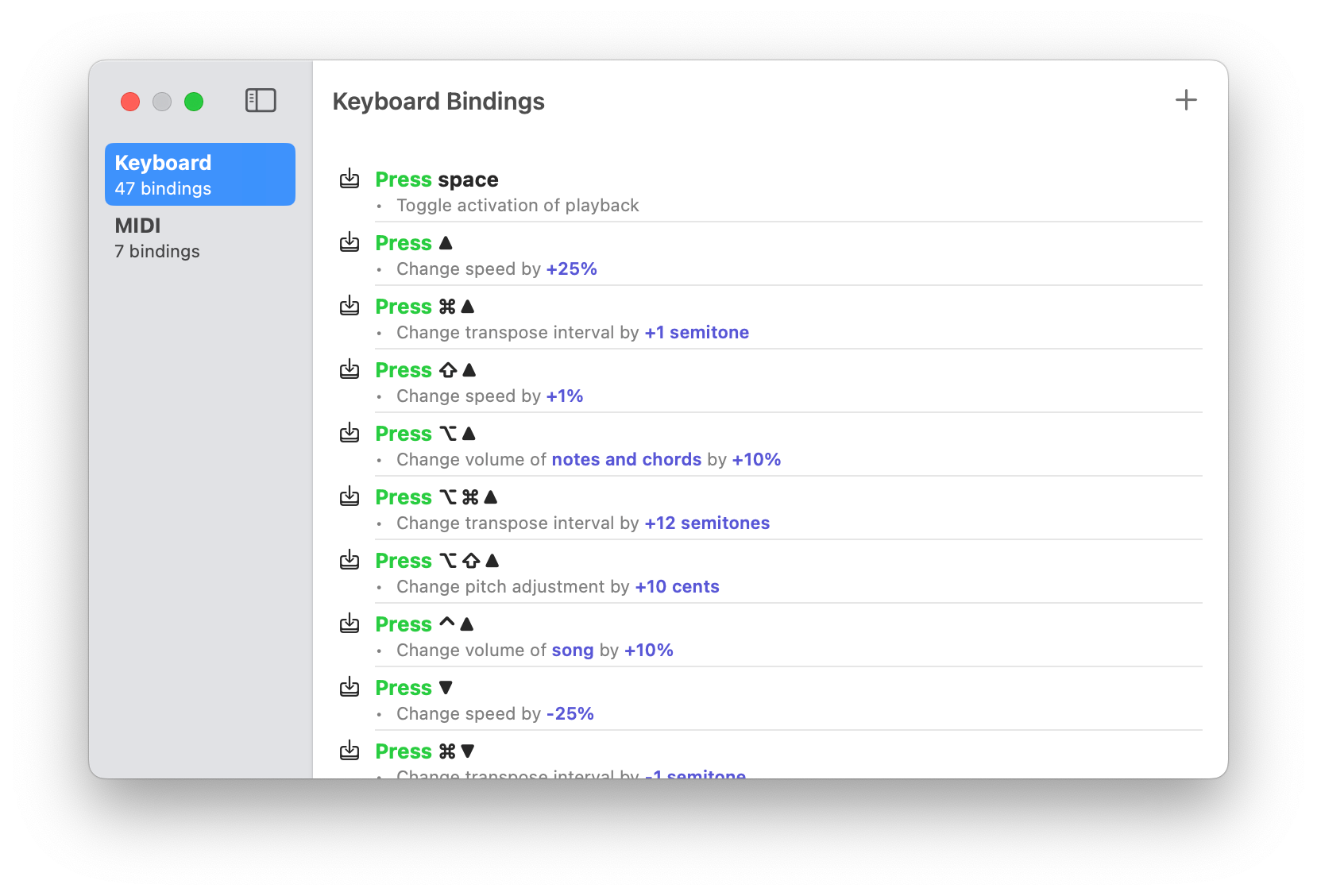
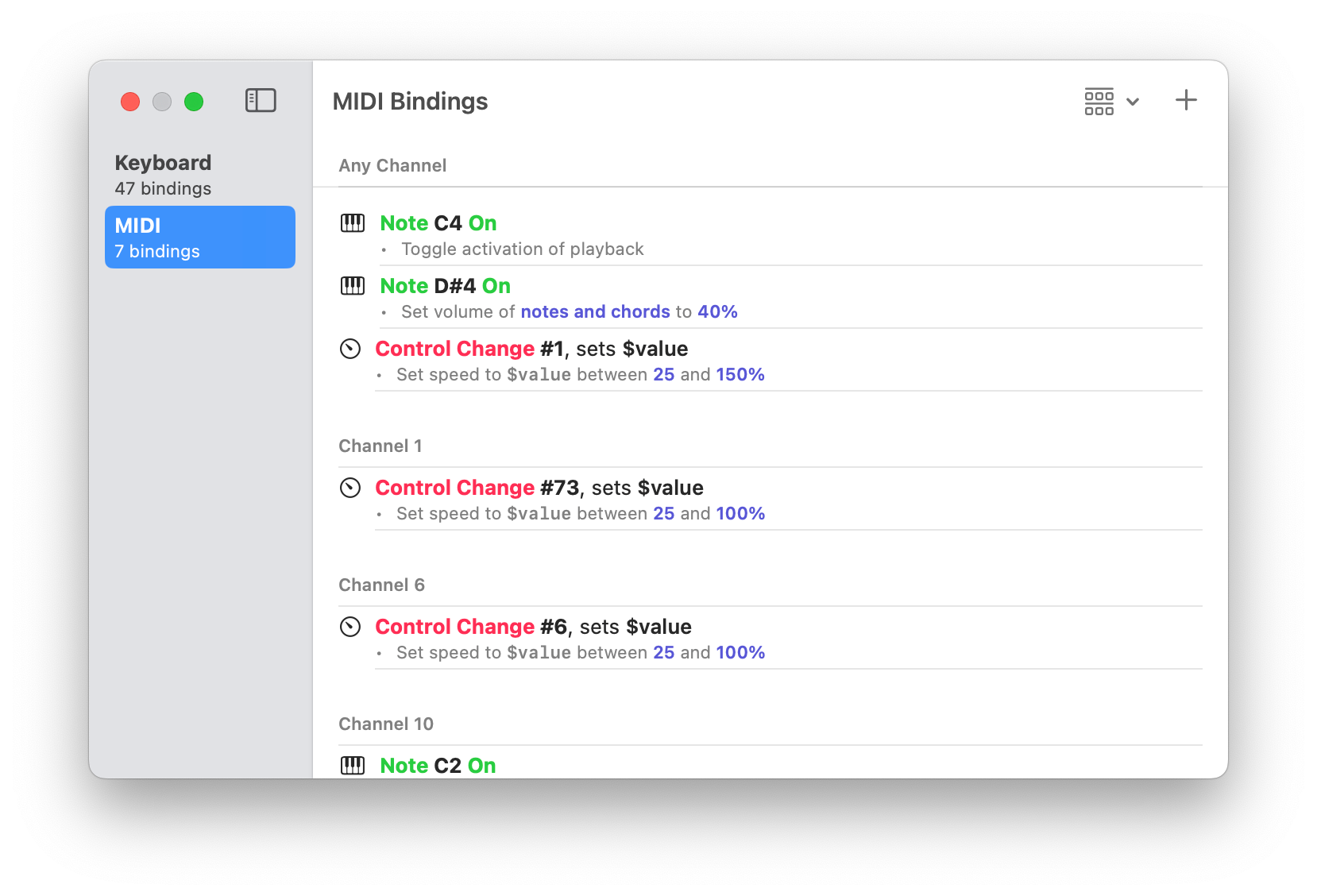
To show the Keyboard and MIDI bindings:
- Choose Control > Edit Keyboard/MIDI Controls… from the main menu, or press ⌃⌘L on your keyboard.
- Select ‘Keyboard’ from the sidebar
To show the Keyboard and MIDI bindings:
- Tap the menu at the top-right of the screen
- Choose ‘Remote Control’
- Select the ‘Keyboard’ item from the list
24.1 Binding Editor
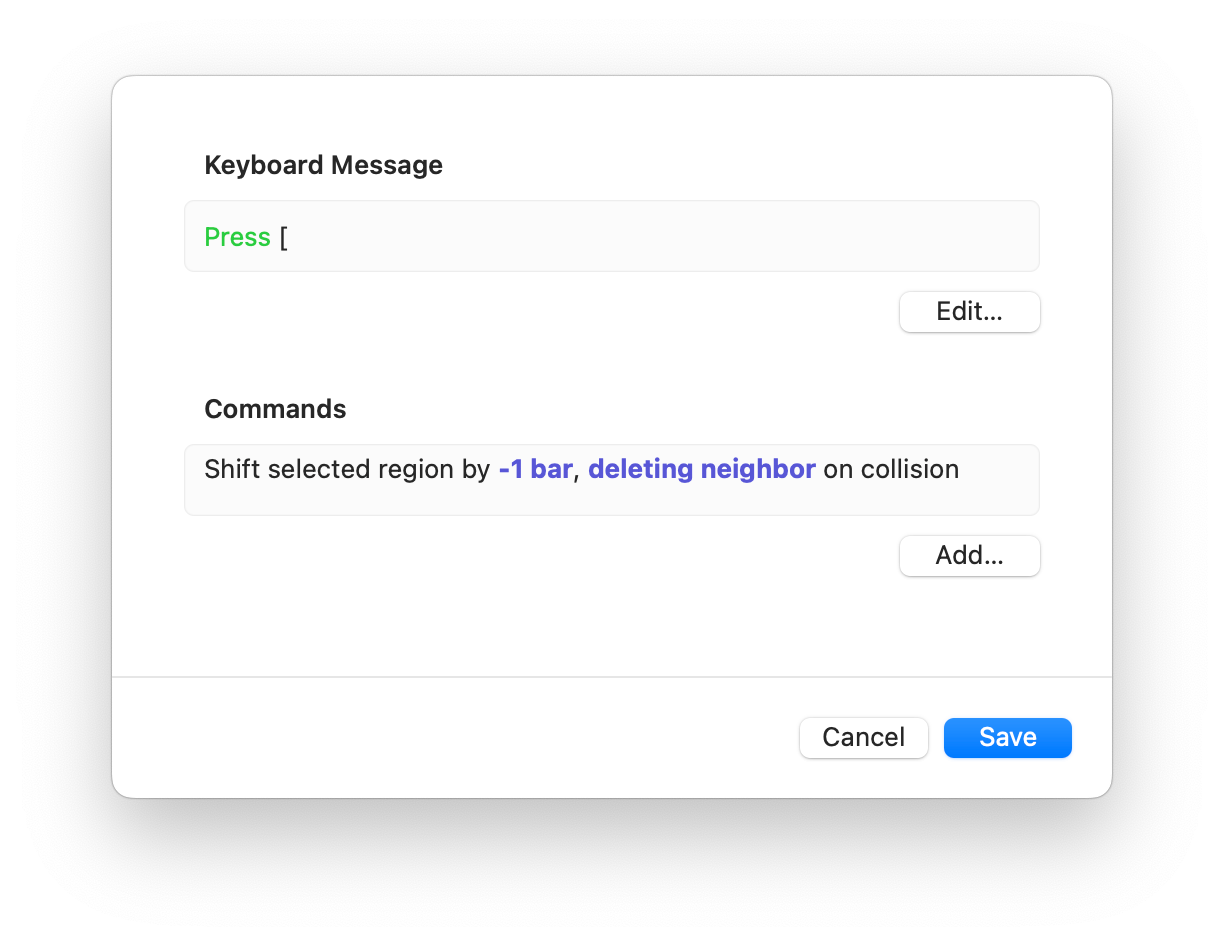
Each binding consists of a trigger—either a MIDI message or keyboard shortcut—that sends one or more commands to Capo. Both kinds of bindings are presented in much the same way, as shown in Figure 24.2.
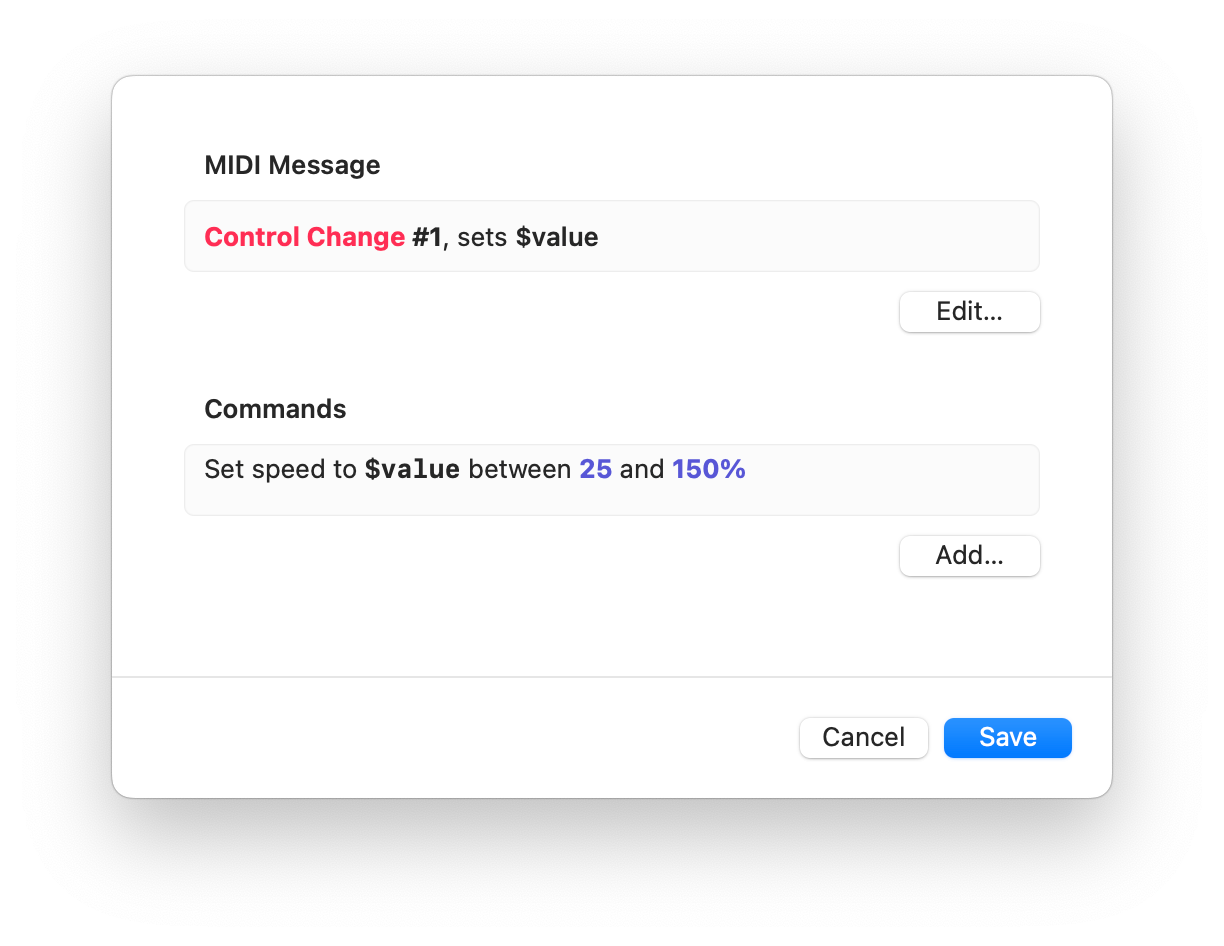
24.2 MIDI Message Editor
When you’re configuring a MIDI binding, you need to choose a MIDI message that triggers the commands in the list. When you click the Edit button, you get the sheet shown in Figure 24.3.
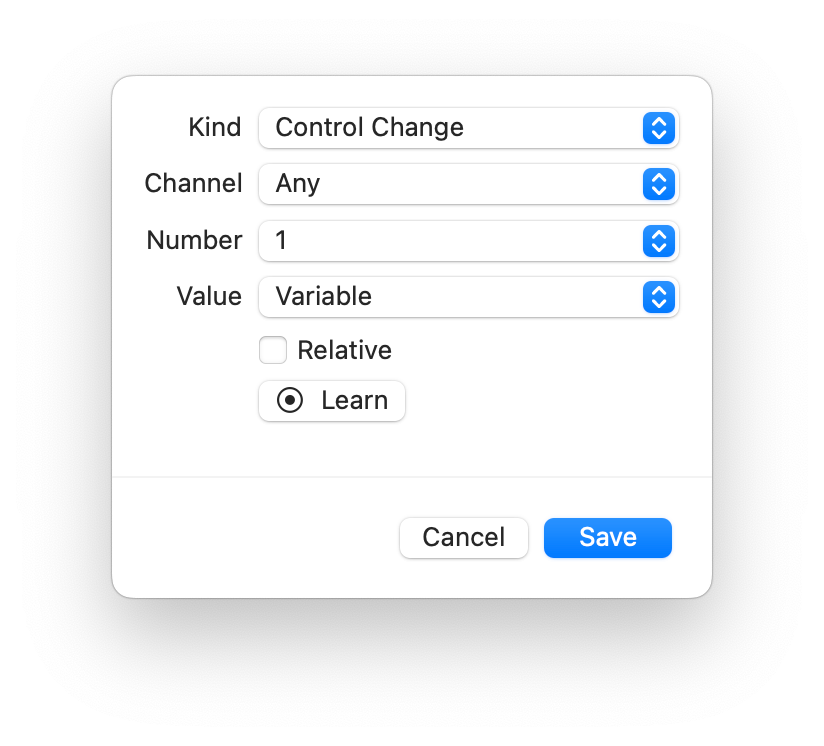
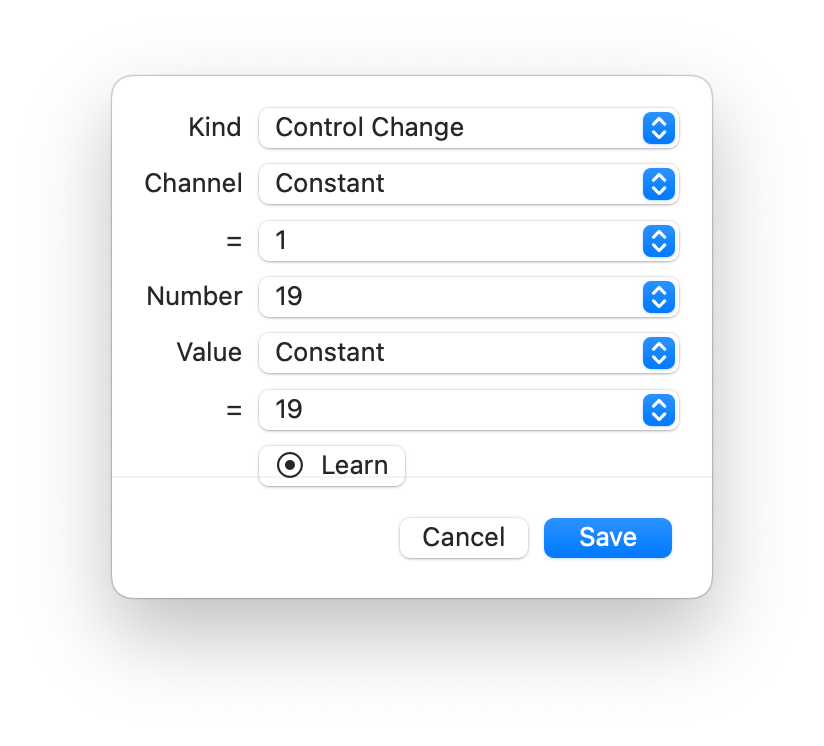
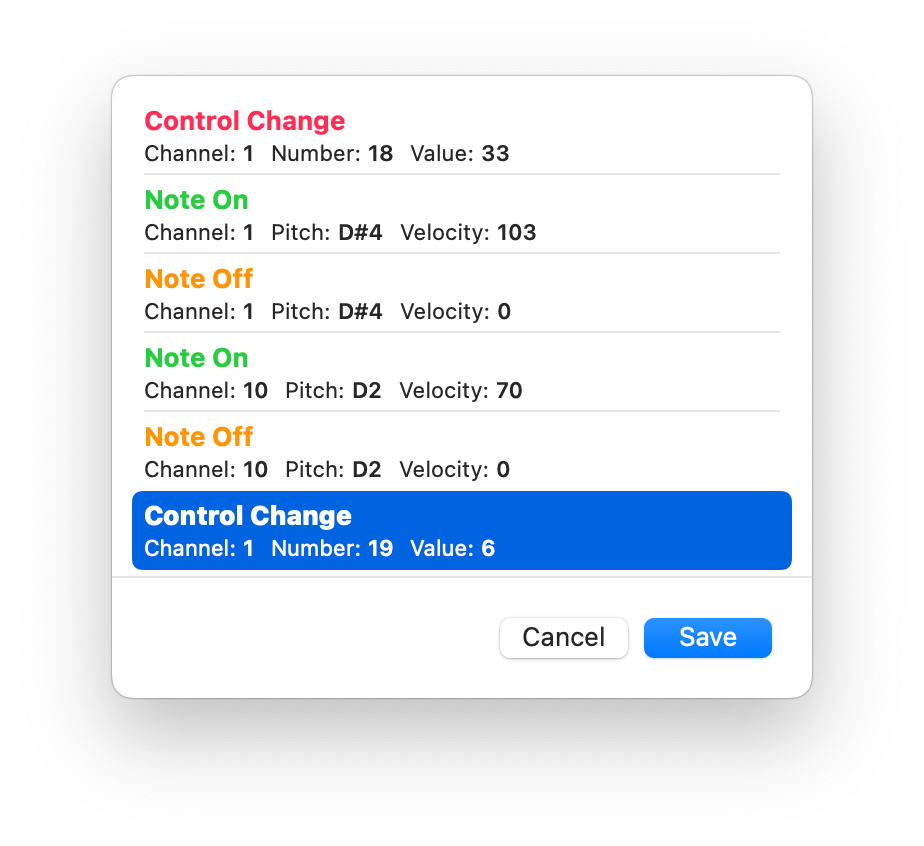
To make your life easier, you can learn the MIDI messages (Figure 24.4) by interacting with your device rather than entering all the values manually.