15 Add a Key That Plays While You Hold It Down
It’s a good idea to stop playback immediately after the note(s) you’re trying to copy in the recording, especially when you’re struggling to remember them. So it’s useful to set up a keystroke that plays the recording only while you hold down the key.
In this how-to guide, we’re going to configure the F8 key to play while you hold it down.
This how-to is tailored for Capo on the Mac, but the instructions are almost exactly the same on iOS.
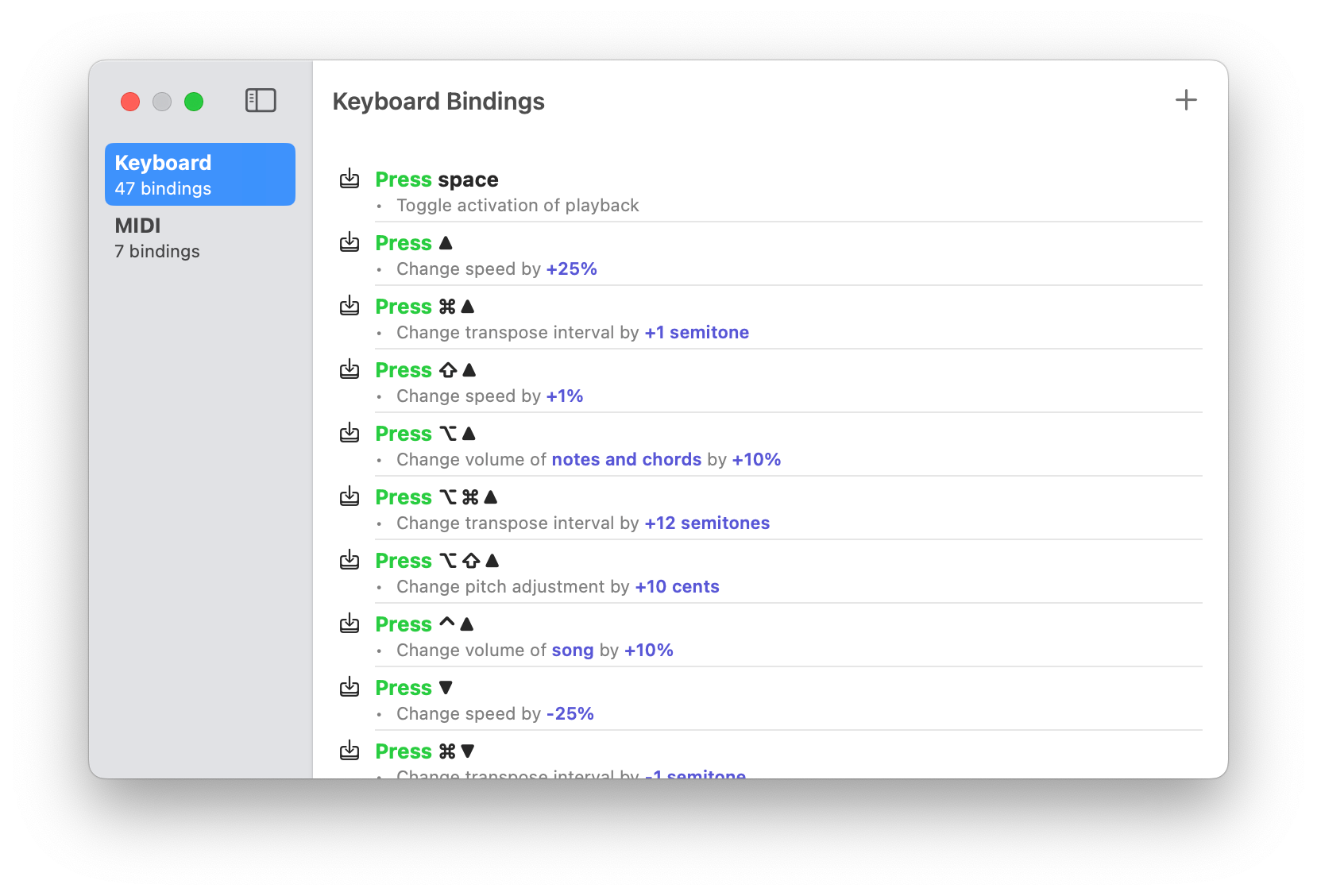
1. Bring Up the Keyboard Bindings Editor
- Choose Control > Edit Keyboard/MIDI Controls… from the main menu, or press ⌃⌘L on your keyboard.
- Select ‘Keyboard’ from the sidebar
- Tap the menu at the top-right of the screen
- Choose ‘Remote Control’
- Select the ‘Keyboard’ item from the list
2. Create the “Pressed” binding
Click (or tap on iOS) the add button at the top-right of the window to show the binding editor. A window should appear that looks similar to Figure 24.2 (a).
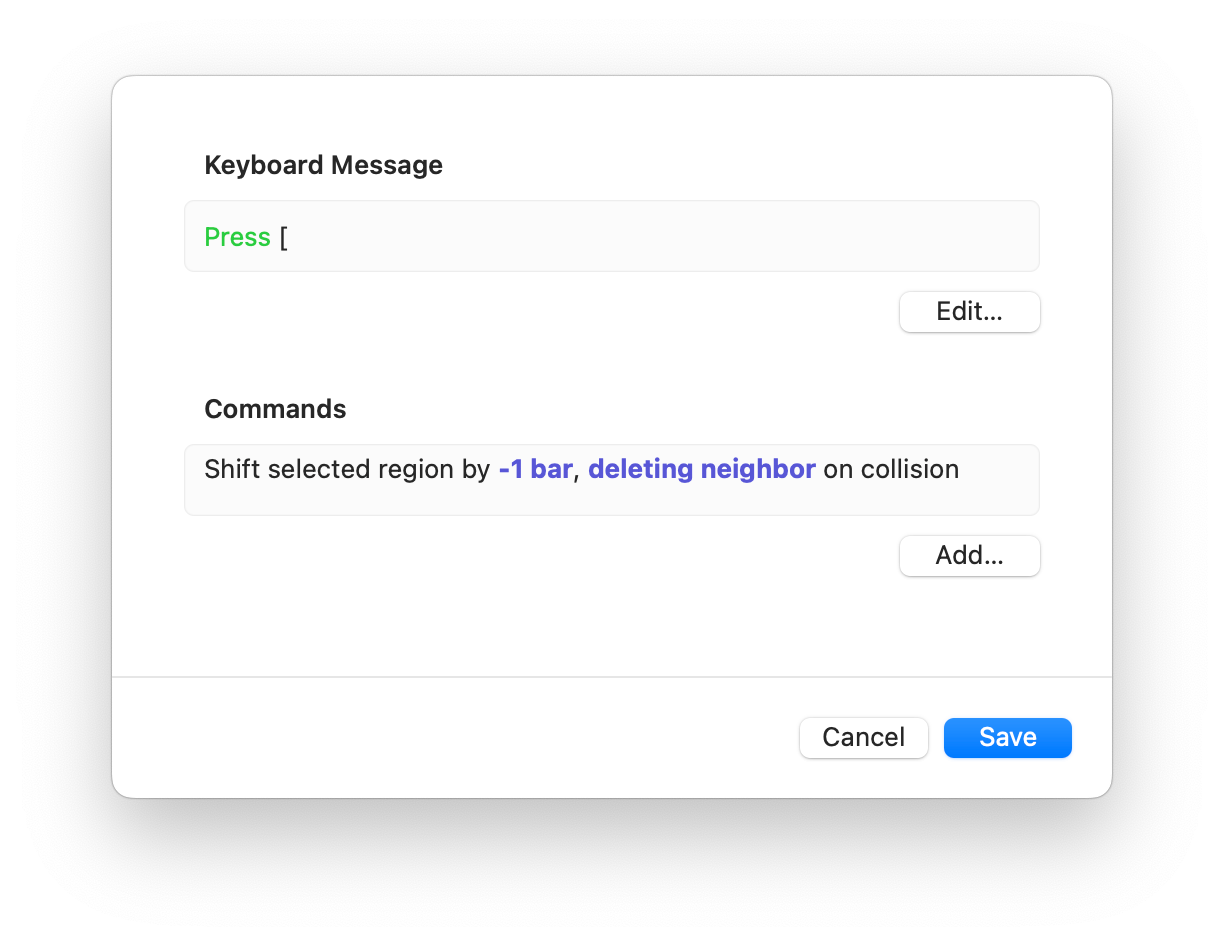
3. Set the key trigger
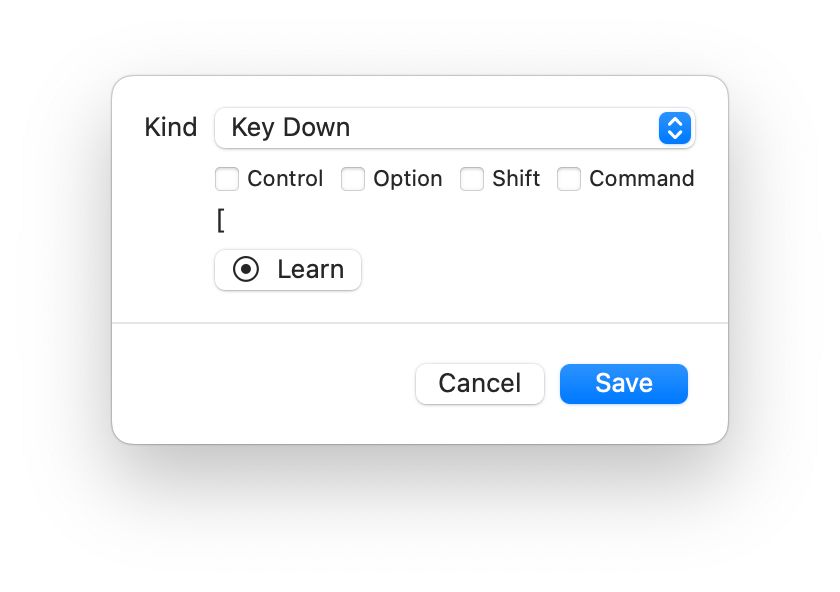
- Click the Edit… button to show the keyboard message editor (Figure 15.3).
- In the sheet, choose ‘Key Down’ from the Kind pop-up button
- Click the Learn button
- Press the F8 key
- Press the Save button
4. Set the ‘Start Playback’ command
- In the binding editor, press the Add… button under the list of commands
- In the search field, type ‘playback’
- Select the Start Playback command
5. Save the binding
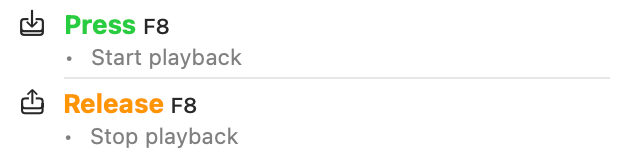
Click the Save button to dismiss the binding editor, and when you scroll the list of keyboard bindings you should see one that matches the top of Figure 38.2.
You’re half-way there!
6. Create the ‘Released’ binding
Repeat steps 2–5, except in Step 3 you should choose ‘Key Up’ from the Kind pop-up button.
When you’re done, you should now find two bindings that match Figure 38.2.
7. Finally, test the binding!
Open a Capo project, and test this out. Press the F8 key, and you’ll hear the recording play while you hold it down. Release the key and playback stops. Now you’re ready to learn your solos in bite-sized chunks!